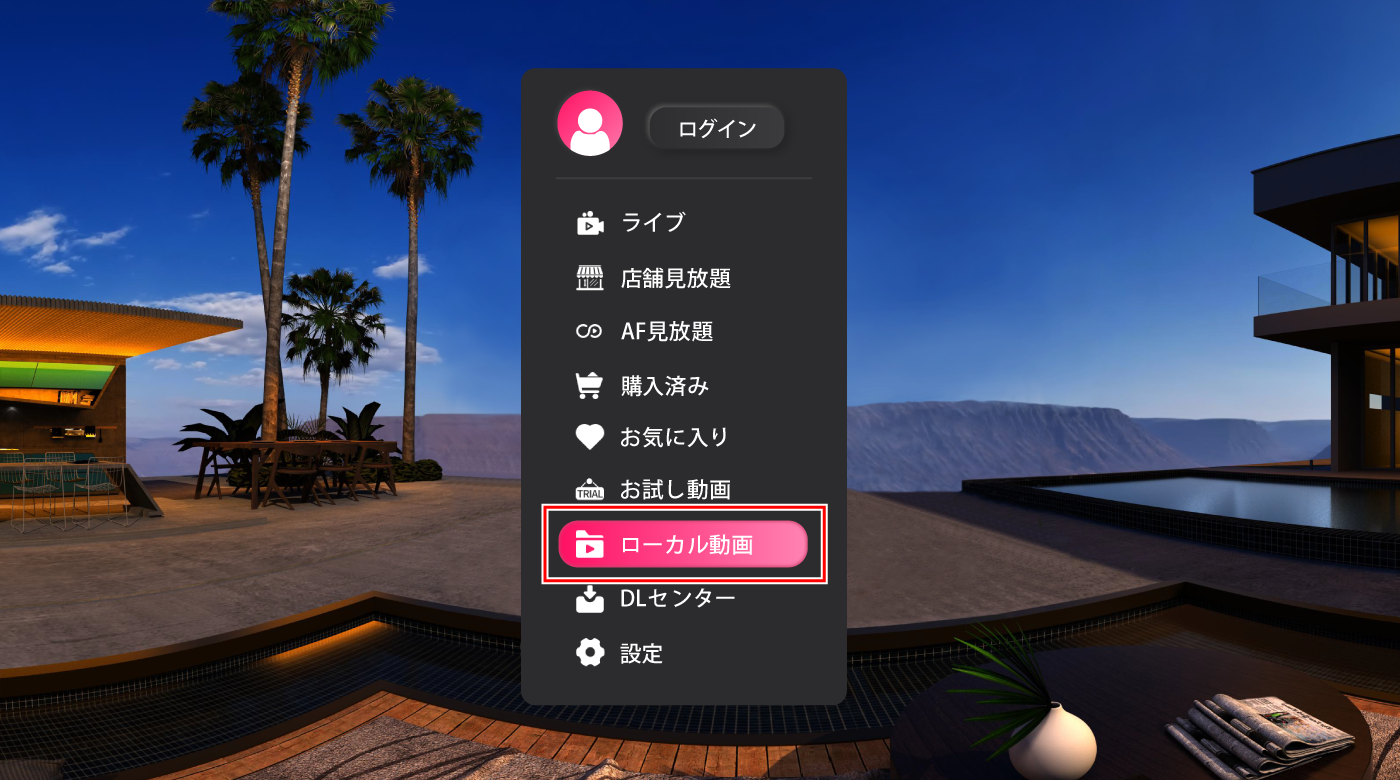
How to use the VR photo album

To use the VR photo book, you will need 4DMEDIAPLAYER. Please check that it works properly.
If you are using a smartphone or computer, you will also need VR goggles that are compatible with your device.

4DMEDIAPLAYER
When using 4DMEDIAPLAYER for PC/smartphone
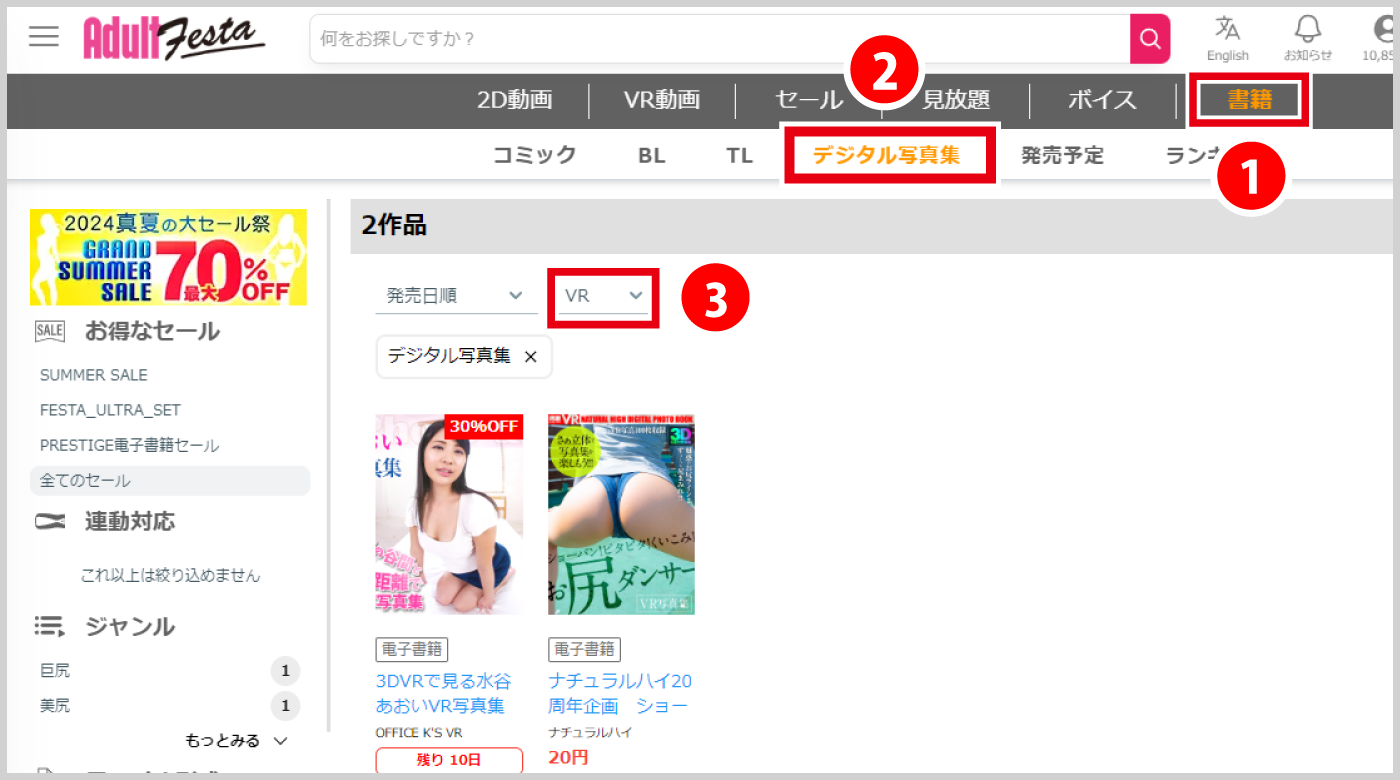
Search and download
On the Adult Festa site,
① Select [Books]
② Select [Digital Photo Book]
③ Select [VR] on the right side of the pull-down menu below the total number of titles
The VR photo album will be displayed by performing the above operations.
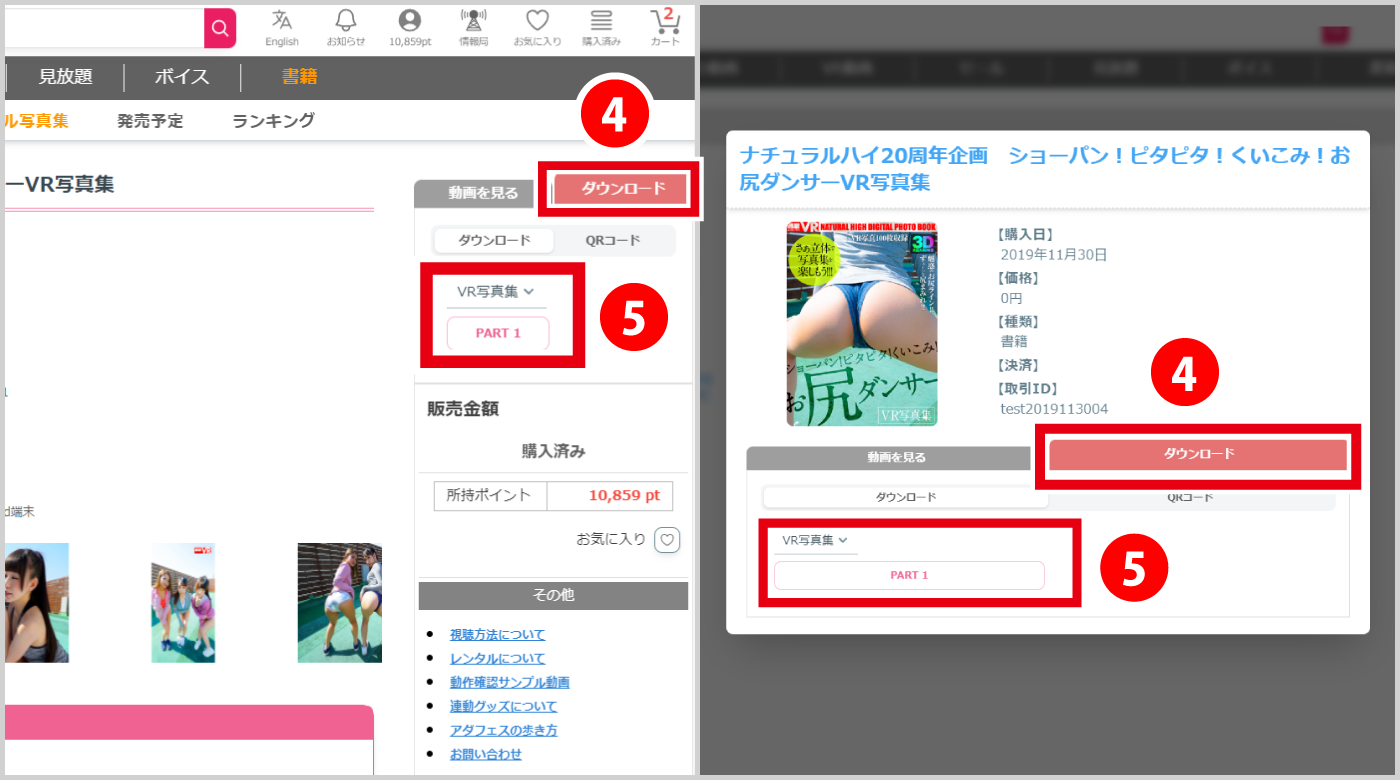
After purchasing the VR photo album, please go to the work page or the purchased page.
④ Open [Download]
⑤ Select image quality [VR Photo Album]
You can start downloading from the below part.
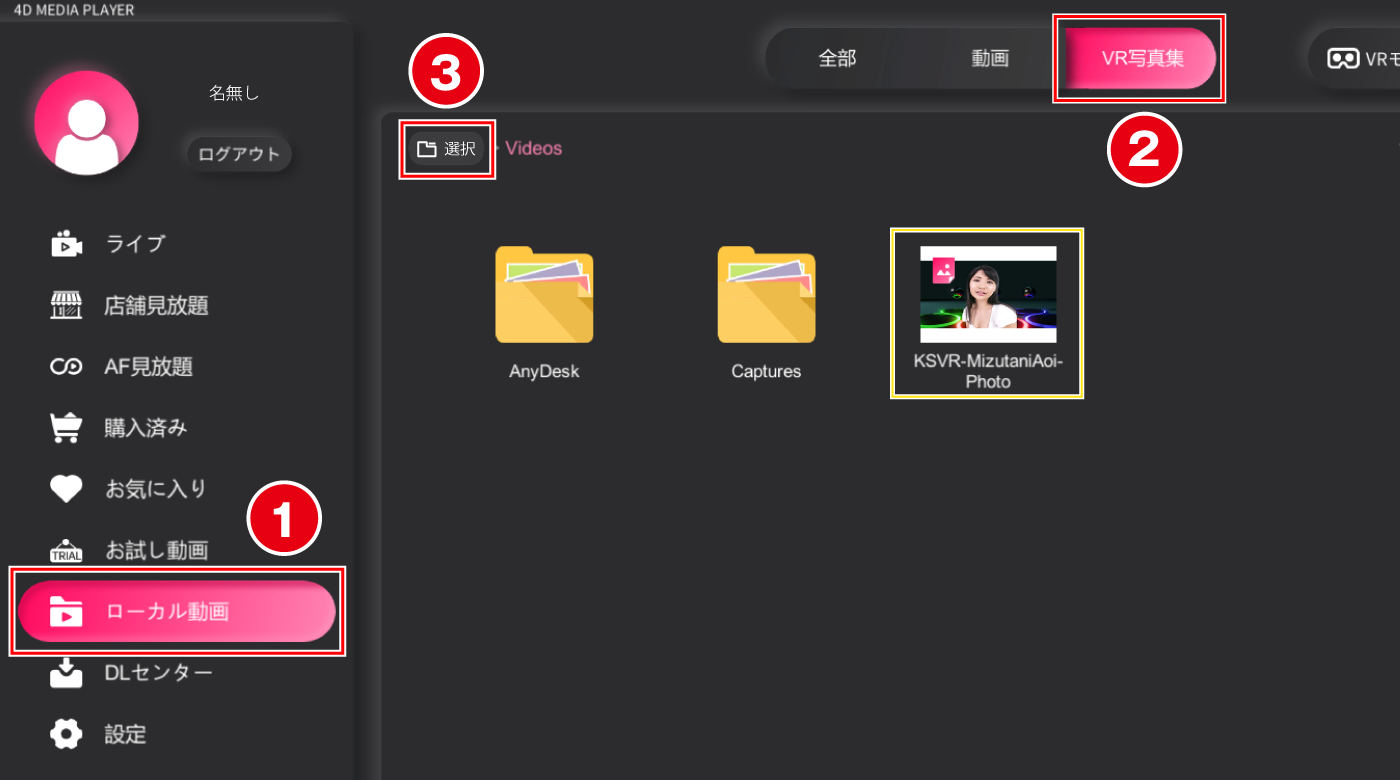
How to watch
After downloading the VR photo album, please launch 4DMEDIAPLAYER.
① Select [Local Videos] from the left menu
② Select [VR Photo Album] displayed above
③ Select the file that contains the VR photo album data from [Select].
The VR photo album data will be displayed as shown in the yellow frame, so select it and start viewing.
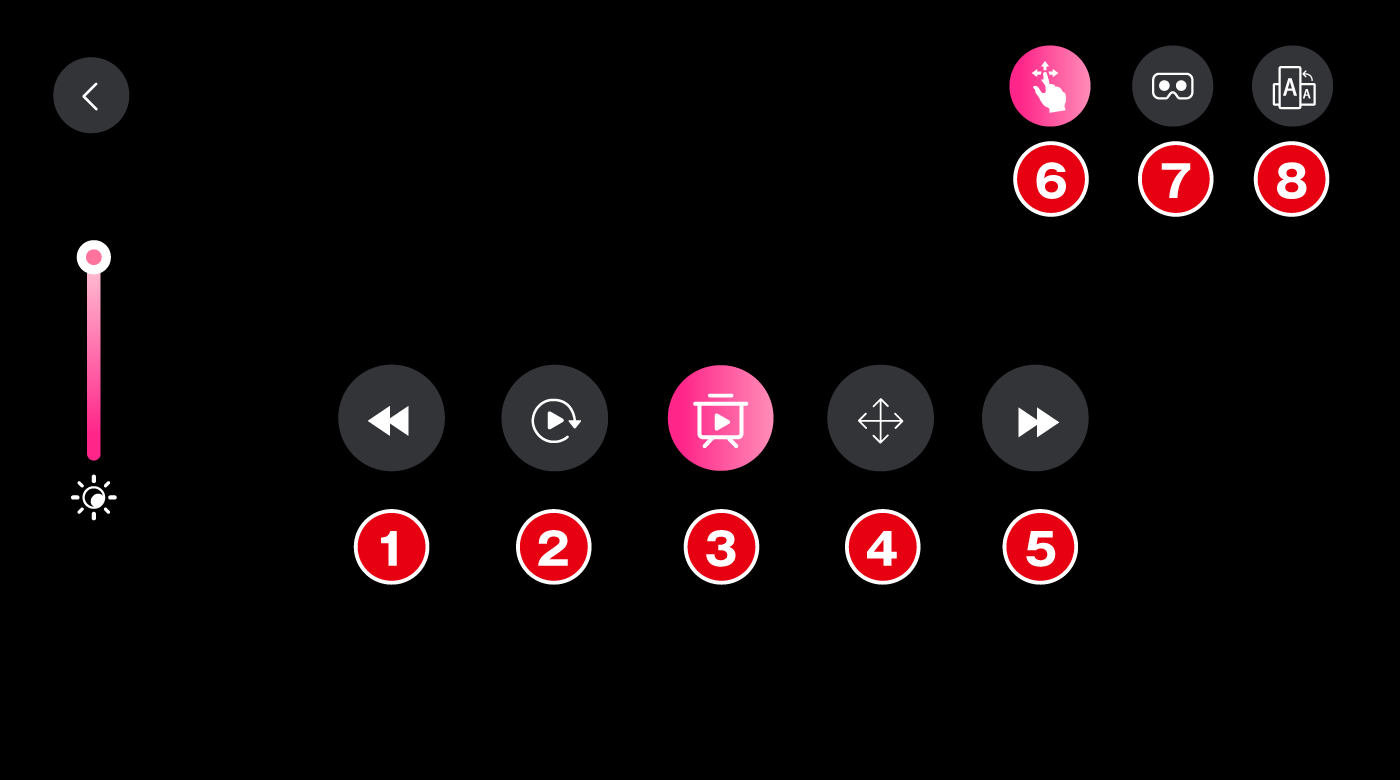
How to operate the 2D mode menu button
① Previous photo
② Return to top
③ Auto Play ON/OFF
④ Re-center
⑤ Next photo
⑥ Switch between moving the screen to view and sliding your finger to view from any viewpoint
⑦ VR mode switching
⑧ 2D mode portrait/landscape display switch
How to watch in VR mode
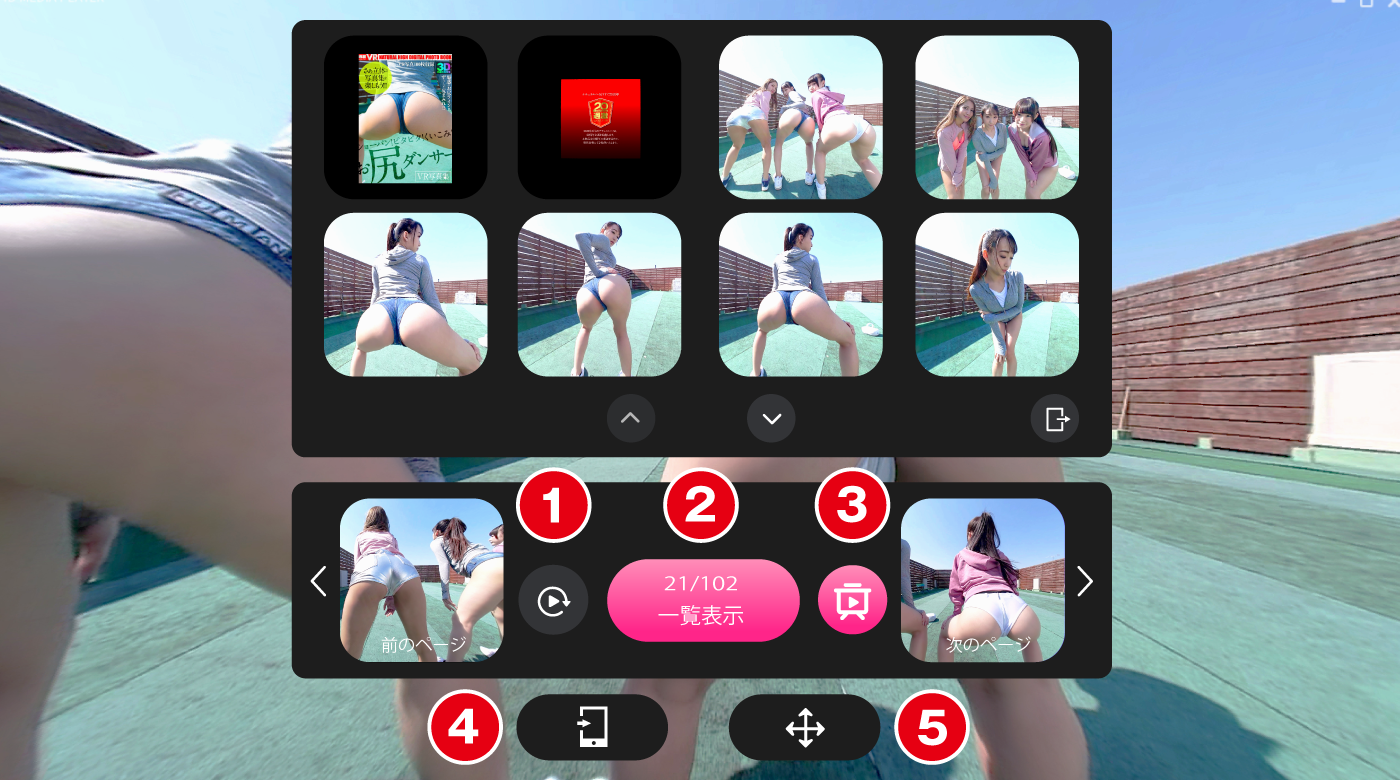
Please press the VR mark from the 2D playback mode menu.
You can enjoy a 3D erotic photo book in a 180-degree range.
Menu details
① Return to the beginning
② Photo list display
③ Auto Play ON/OFF
④ Return to 2D mode (door mark)
⑤ Re-center
If you are watching on a PC, please connect a PC VR head mount and use it.
>Click here for how to use 4DMEDIAPLAYER for smartphones
>Click here for instructions on how to use 4DMEDIAPLAYER for PC
How to transfer VR photo albums from your PC to your smartphone
Transfer the VR photo book file to the "Movies folder" on your smartphone or SD card.
Android:Transfer files between your computer and your Android device (Android Help)
iPhone:Transfer files between iPhone and computer (iPhone User Guide)
MetaQuest
How to watch MetaQuest
How to download files
On the Adult Festa site,
① Select [Books]
② Select [Digital Photo Book]
③ Select [VR] on the right side of the pull-down menu below the total number of titles
The VR photo album will be displayed by performing the above operations.
After purchasing the VR photo album, go to the work page or the purchased page...
④ Open [Download]
⑤ Select image quality [VR Photo Album]
You can start downloading from the below part.
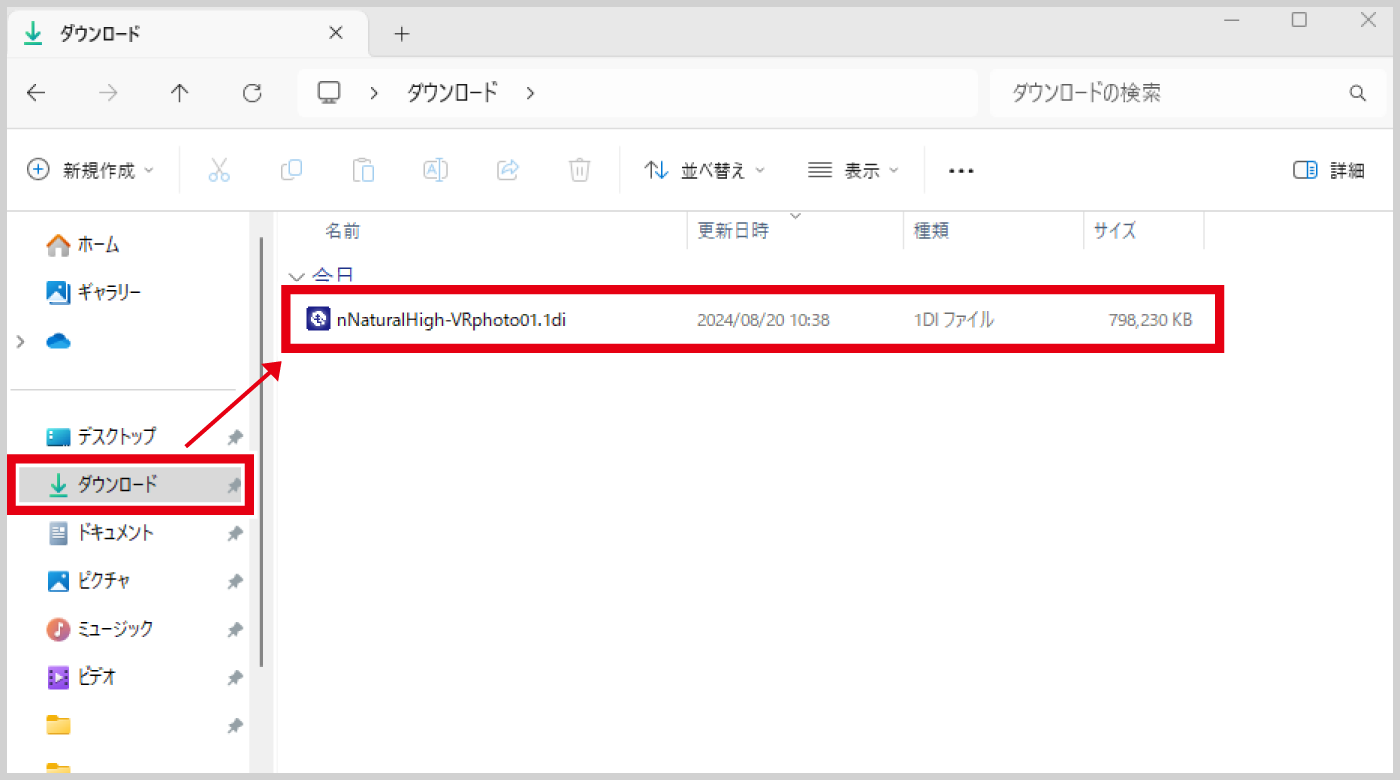
Connect MetaQuest to your PC and save the photo files with the extension [1di] from the PC's download folder to the following directory.
PC\****\Internal Shared Storage\Android\data\jp.lpeg.mediaplayer.files\Download\media
※"****" will be replaced with your individual user name.
How to watch on Quest version of 4D MEDIA PLAYER
※The VR photo album is content exclusively for 4D MEDIA PLAYER.
1.Download the Quest version of 4D MEDIA PLAYER from the Store.
Download here
2.4Start 4DMEDIAPLAYER and select the VR photo album from local videos to watch.